
Malicious Email Attachments: The File Types Criminals Use to Spread Malware
Fake invoices, password-protected ZIPs, disk images and HTML files are among the most common ways malware and ransomware reach business computers. Learn which attachments to treat with care and how to handle them safely.
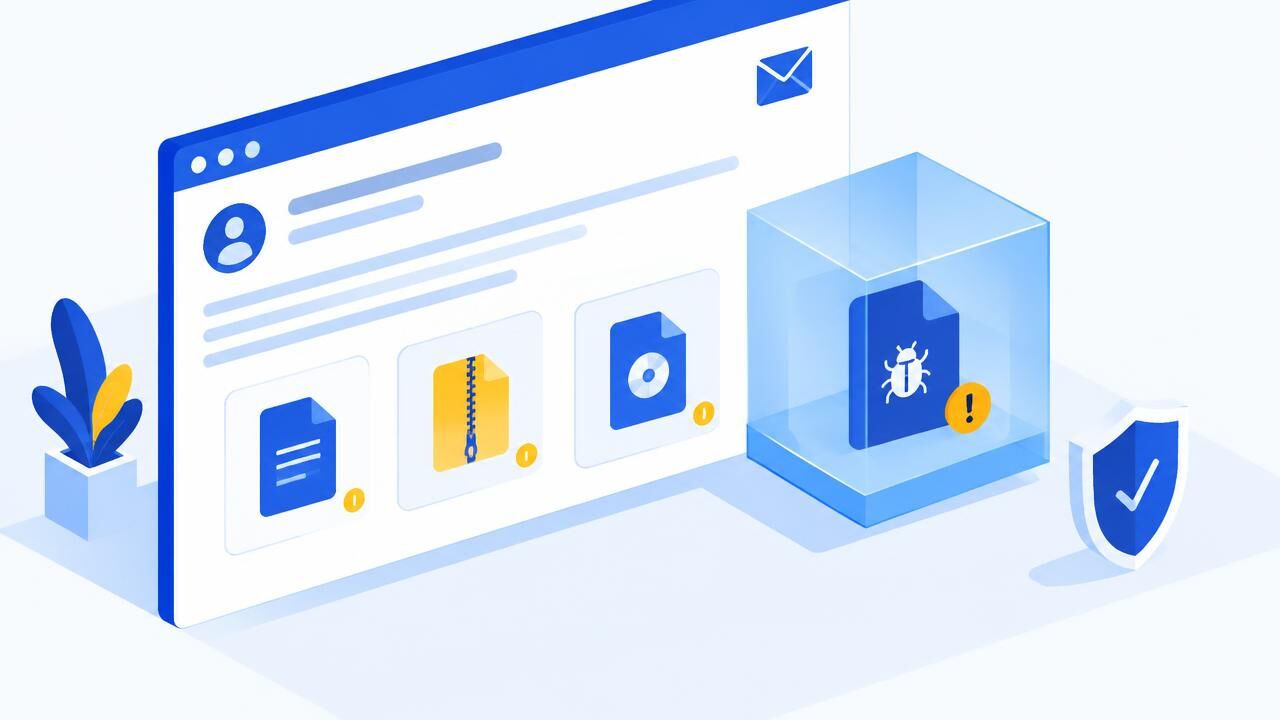
Most ransomware and data-stealing infections in small businesses still start the old-fashioned way: someone opens an attachment. The email looks routine — an invoice, a delivery note, a tender document, a payslip — and the file does the rest. Knowing which email attachments are risky is one of the cheapest security skills a team can learn.
The file types to treat with care
| Attachment | Why criminals use it |
|---|---|
| Office files asking to "Enable content" (.docm, .xlsm, older .doc/.xls) | Macros can run code. Microsoft now blocks macros in files from the internet by default, so the email tries to talk you into unblocking them. |
| Password-protected ZIP or RAR | Encryption hides the contents from scanners. The password is helpfully included in the email. |
| Disk images (.iso, .img, .vhd) | They open like a folder and can hide programs from some security warnings. |
| HTML or HTM files | They open a fake sign-in page from your own computer, or rebuild a malicious file inside the browser. |
| Shortcuts and scripts (.lnk, .js, .vbs, .bat, .ps1) | A single double-click runs commands. |
| Disguised programs (invoice.pdf.exe) | Windows hides known extensions by default, so the file appears to be a PDF. |
| PDFs with QR codes or buttons | The PDF is clean; the link or QR code leads to phishing. |
Warning signs in the email itself
- An unexpected invoice, payment, delivery or tender notice — especially from someone you do not normally deal with.
- Instructions to "enable editing", "enable content" or "open on a computer".
- A password for the attachment included in the message.
- A reply to an old email thread that suddenly includes a file — a sign the sender's mailbox may be compromised.
- A sender address that does not match the company in the signature.
Safe habits for everyone
- Show file extensions in Windows (File Explorer → View → Show → File name extensions) so "invoice.pdf.exe" cannot hide.
- Never enable macros in a document you received by email unless your IT team has confirmed it.
- Confirm unexpected files with the sender using a phone number you already have — not by replying.
- Open documents in preview mode or in cloud viewers where possible.
- Keep Windows, Office, browsers and antivirus updated.
If someone opened a suspicious attachment
- Disconnect the computer from the network (unplug the cable or turn off Wi-Fi). Do not switch it off — logs may help the investigation.
- Tell your IT team or provider immediately. Speed limits the damage.
- Run a full scan with up-to-date security software.
- From a different, clean device, change passwords for email and any accounts used on that computer.
- Check that your backups are recent and stored separately. Our article on the 3-2-1 backup rule explains why.
Stop dangerous files before they arrive
The safest attachment is the one that never reaches the inbox. Our incoming email filtering scans attachments with multiple engines, blocks risky file types and quarantines suspicious messages so staff can review them safely. Pair it with email archiving so you can recover genuine messages and keep records. For a broader view, read how email spam filtering works.
Want official advice to share with your team? The National KE-CIRT/CC publishes regular advisories for Kenyan organisations.
Share this article
Was this article helpful?
Your vote helps us write better guides.