

What you'll need
Administrator access
Sign in to the server as an administrator, usually over Remote Desktop.
An IIS binding on port 80
The site needs a hostname binding for your domain on port 80. Sites bound only to the default or wildcard hostname aren't supported.
ACME credentials
Your ACME server URL, EAB key ID, EAB HMAC key and the subscription ID we send with them.
- 1
Step 1 of 4
Set up simple-acme
- Download the latest release from simple-acme.com (the project formerly known as win-acme).
- Extract the zip to C:\Program Files\simple-acme.
- Double-click wacs.exe once to check it starts, then close it.
- 2
Step 2 of 4
Issue and bind the certificate
Open PowerShell as Administrator and run:
PowerShell & "C:\Program Files\simple-acme\wacs.exe" ` --source iis --host "yourdomain.com,www.yourdomain.com" ` --certificatestore My --installation iis ` --acl-fullcontrol "IIS_IUSRS,SYSTEM,Administrators" ` --eab-key-identifier "EAB_KID" --eab-key "EAB_HMAC_KEY" --eab-algorithm HS256 ` --baseuri "SERVER" --account "sslsub-SUBSCRIPTION_ID" --accepttosReplace the placeholders
SERVER- The ACME directory URL for your certificate, e.g. https://acme.sectigo.com/v2/DV. We send it with your credentials.
EAB_KID- Your External Account Binding key ID — the shorter of the two credentials.
EAB_HMAC_KEY- Your External Account Binding HMAC key — the longer credential. Treat it like a password.
--host- The hostnames on the IIS site, comma-separated, e.g. "mydomain.com,www.mydomain.com".
SUBSCRIPTION_ID- The subscription ID sent with your ACME credentials. It keeps each subscription's account separate.
Tip: Something not working? Add
--verboseto the command for detailed error output. - 3
Step 3 of 4
Verify the HTTPS binding
Browse to https://yourdomain.com, or run our free SSL Checker. In IIS Manager, open Sites → [your site] → Bindings and confirm an https binding on port 443 uses the new certificate.
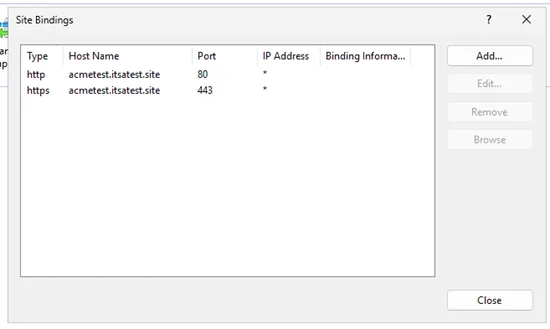
IIS Manager → Sites → your site → Bindings. - 4
Step 4 of 4
Confirm the scheduled renewal
simple-acme creates a Windows scheduled task that renews the certificate and updates the binding. List renewals for your ACME server:
PowerShell & "C:\Program Files\simple-acme\wacs.exe" --list --baseuri "SERVER"
The renewal list shows the next due date for each certificate. Note: simple-acme keeps a separate list for each ACME server, so always pass
--baseurito see the right renewals.
All set — your certificate now renews itself
Keep an eye on it anyway: scheduled jobs occasionally fail. Check your live certificate any time with our free SSL Checker.