

What you'll need
SSH or Terminal access
Use cPanel's built-in Terminal or any SSH client. On WHM-managed servers, “Shell access” must be enabled in the hosting package.
ACME server URL
The directory URL for your certificate, e.g. https://acme.sectigo.com/v2/DV.
EAB credentials
Your EAB key ID and EAB HMAC key, which link the client to your paid certificate.
Website document root
The folder that holds your homepage, usually /home/username/public_html/.
- 1
Step 1 of 6
Open a terminal session
The quickest route is the Terminal built into cPanel:
- Sign in to cPanel.
- Scroll to the Advanced section.
- Click Terminal.
- If a warning appears, click I understand and want to proceed.
Tip: Prefer your own SSH client? Many hosts use a non-standard SSH port instead of 22 — check your welcome email or ask our support team for the right port.
- 2
Step 2 of 6
Install the acme.sh client
acme.sh is a small shell script that runs happily inside cPanel's restricted environment — no root access needed. Install it with:
Terminal curl https://get.acme.sh | shThe installer prints the folder it was installed to. Make a note of it — you may need the full path later.
- 3
Step 3 of 6
Register with the ACME server
Link acme.sh to your certificate subscription using your EAB credentials:
Terminal ~/.acme.sh/acme.sh --register-account \ --server SERVER \ --eab-kid EAB_KID \ --eab-hmac-key EAB_HMAC_KEYReplace the placeholders
SERVER- The ACME directory URL for your certificate, e.g. https://acme.sectigo.com/v2/DV. We send it with your credentials.
EAB_KID- Your External Account Binding key ID — the shorter of the two credentials.
EAB_HMAC_KEY- Your External Account Binding HMAC key — the longer credential. Treat it like a password.
Note: Seeing “command not found”? Replace
~/.acme.sh/acme.shwith the full path printed in the previous step, for example/home/username/.acme.sh/acme.sh. - 4
Step 4 of 6
Issue the certificate and deploy it to cPanel
Request the certificate and tell acme.sh to hand it to cPanel through the cPanel API:
Terminal ~/.acme.sh/acme.sh --issue \ --webroot /home/username/public_html \ --domain yourdomain.com \ --domain www.yourdomain.com \ --deploy-hook cpanel_uapi \ --server SERVER \ --eab-kid EAB_KID \ --eab-hmac-key EAB_HMAC_KEYReplace the placeholders
--webroot- The folder that holds your homepage. Find it in cPanel's File Manager if you're unsure.
--domain- Each hostname to secure. Repeat the flag for www and non-www versions.
--deploy-hook cpanel_uapi- Installs the certificate into cPanel after every issue and renewal.
When the certificate has been issued, import it into cPanel:
Terminal ~/.acme.sh/acme.sh --deploy \ --domain yourdomain.com \ --deploy-hook cpanel_uapi - 5
Step 5 of 6
Check the installation
The certificate now appears in cPanel. To confirm:
- Open SSL/TLS → Certificates (CRT) to see the new certificate.
- Open SSL/TLS → Manage SSL Sites to confirm it's applied to your domain.
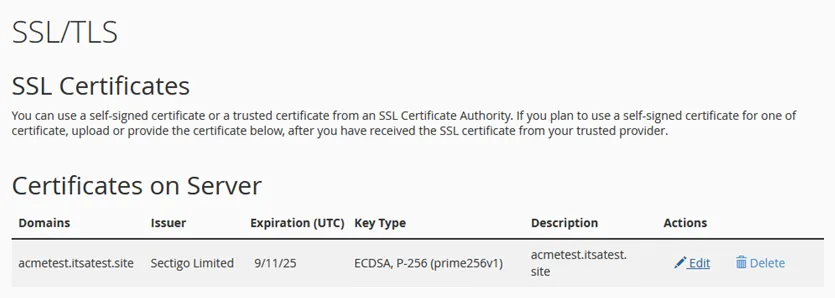
cPanel → SSL/TLS → Manage SSL Sites showing the installed certificate. Finally, visit https://yourdomain.com and look for the padlock, or run the domain through our free SSL Checker for a full chain and expiry report.
- 6
Step 6 of 6
Confirm automatic renewal
acme.sh adds a daily cron job and renews certificates roughly 30 days before they expire. Force a test renewal to prove it works:
Terminal ~/.acme.sh/acme.sh --cron --forceBack in SSL/TLS → Manage SSL Sites, the Certificate ID and expiry date should have changed.
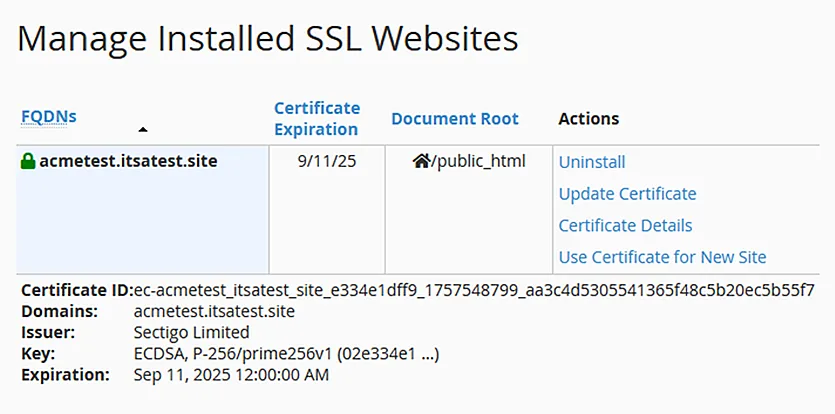
A new Certificate ID confirms the renewal and redeploy worked.
All set — your certificate now renews itself
Keep an eye on it anyway: scheduled jobs occasionally fail. Check your live certificate any time with our free SSL Checker.