

What you'll need
LiteSpeed Web Server
OpenLiteSpeed or LiteSpeed Enterprise, installed and running. A fresh install is fine.
Shell access
Root or sudo privileges on the server.
DNS + outbound internet
An A/AAAA record pointing at the server, and outbound HTTPS to your ACME server.
HTTP listener on port 80
Needed for validation. In WebAdmin → Listeners, port 80 should be bound to ANY (see the appendix if not).
EAB credentials
Your ACME server URL, EAB key ID and EAB HMAC key.
- 1
Step 1 of 7
Install acme.sh
Terminal curl https://get.acme.sh | shsource ~/.bashrcacme.sh --versionTip: If the install fails, make sure curl and git are installed. For a half-finished install, rerun the command with
--force. - 2
Step 2 of 7
Register your ACME account
Terminal acme.sh --register-account \ --server SERVER \ --eab-kid EAB_KID \ --eab-hmac-key EAB_HMAC_KEY \ --accountemail [email protected]Replace the placeholders
SERVER- The ACME directory URL for your certificate, e.g. https://acme.sectigo.com/v2/DV. We send it with your credentials.
EAB_KID- Your External Account Binding key ID — the shorter of the two credentials.
EAB_HMAC_KEY- Your External Account Binding HMAC key — the longer credential. Treat it like a password.
[email protected]- The email address for account and expiry notices.
Note: If an account already exists for these credentials, acme.sh simply reuses it. If registration fails, re-check the credentials and make sure outbound port 443 is open.
- 3
Step 3 of 7
Issue the certificate (webroot mode)
Terminal acme.sh --issue \ -d yourdomain.com \ -d www.yourdomain.com \ -w /usr/local/lsws/Example/html \ --server SERVERReplace the placeholders
-d- Each domain to secure. Add -d www.yourdomain.com for the www version.
-w- Your site's document root, e.g. /usr/local/lsws/Example/html.
--server- Your ACME directory URL.
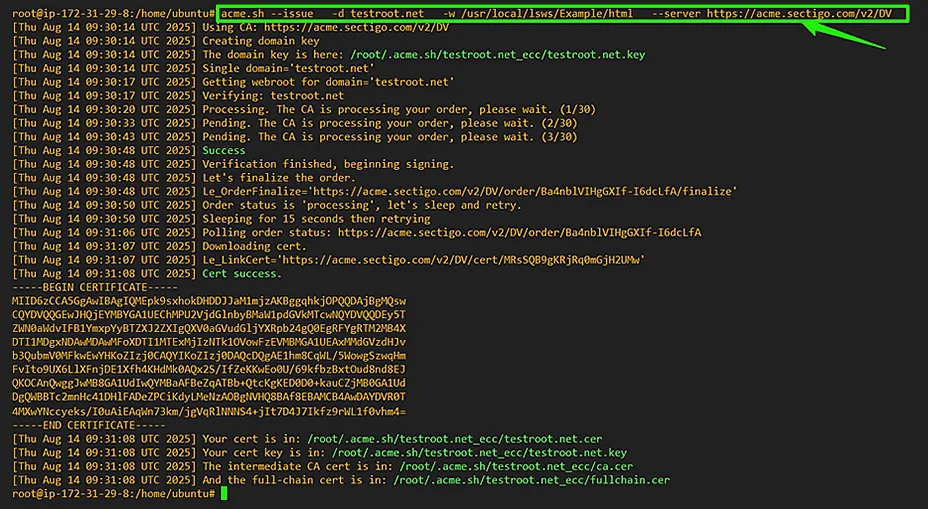
A successful issue lists the certificate, key and full-chain file paths. Watch out: “Unauthorized” or “not delegated”? You're probably using the wrong ACME server URL or EAB credentials for this subscription.
- 4
Step 4 of 7
Install the files and reload LiteSpeed automatically
Create a folder for the certificate, then let acme.sh copy the files there and reload LiteSpeed after every renewal:
Terminal mkdir -p /usr/local/lsws/conf/cert/yourdomain.com acme.sh --install-cert -d yourdomain.com \ --key-file /usr/local/lsws/conf/cert/yourdomain.com/yourdomain.com.key \ --fullchain-file /usr/local/lsws/conf/cert/yourdomain.com/yourdomain.com.crt \ --reloadcmd "/usr/local/lsws/bin/lswsctrl reload"
The key and full-chain certificate in /usr/local/lsws/conf/cert/yourdomain.com/. Tip: If LiteSpeed doesn't pick up the new certificate, double-check the
--reloadcmdpath and the ownership and permissions of the files under /usr/local/lsws/conf/cert/. - 5
Step 5 of 7
Add an HTTPS listener on port 443
Once the files are in place, create the HTTPS listener (skip this if you already have one):
- In WebAdmin, open Listeners → Add.
- Set Name: HTTPS, IP Address: ANY, Port: 443, Secure: Yes, then save.
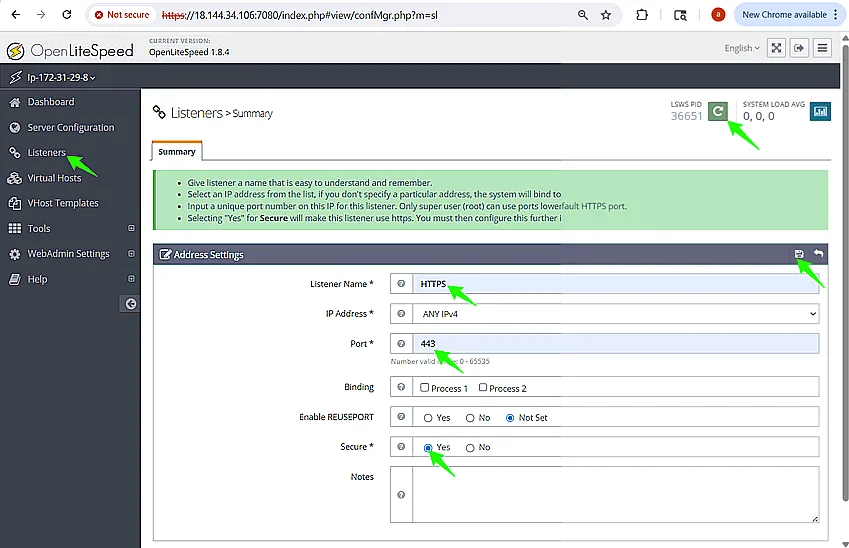
Listener settings: HTTPS on port 443 with Secure enabled. - On the listener's SSL tab, set Private Key File to …/yourdomain.com.key and Certificate File to …/yourdomain.com.crt.
- Map your virtual host (for example Example) to the domain
*. - Save, then Graceful Restart.
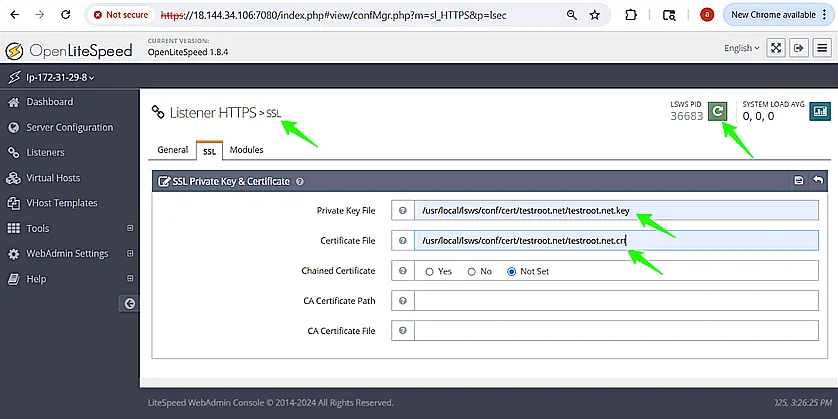
Point the listener at the key and certificate that acme.sh installed. 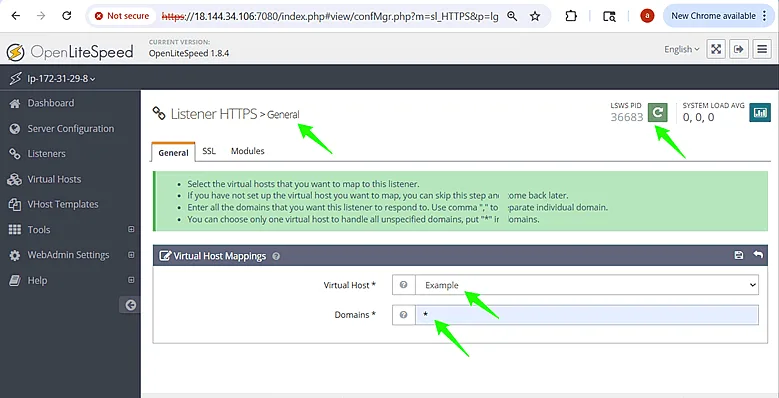
Map the virtual host to the listener, then restart. Watch out: WebAdmin rejects the listener? The certificate or key path is wrong. Restart LiteSpeed and check /usr/local/lsws/logs/error.log for details.
- 6
Step 6 of 7
Verify the site and test auto-renewal
Open https://yourdomain.com and confirm the certificate is valid for your domain, or use our SSL Checker. Then check the renewal job exists:
Terminal crontab -lYou should see a line similar to:
Expected cron entry 24 13 * * * "/root/.acme.sh"/acme.sh --cron --home "/root/.acme.sh" > /dev/nullForce a renewal to prove the whole chain — issue, install and reload — works:
Terminal acme.sh --renew -d yourdomain.com --force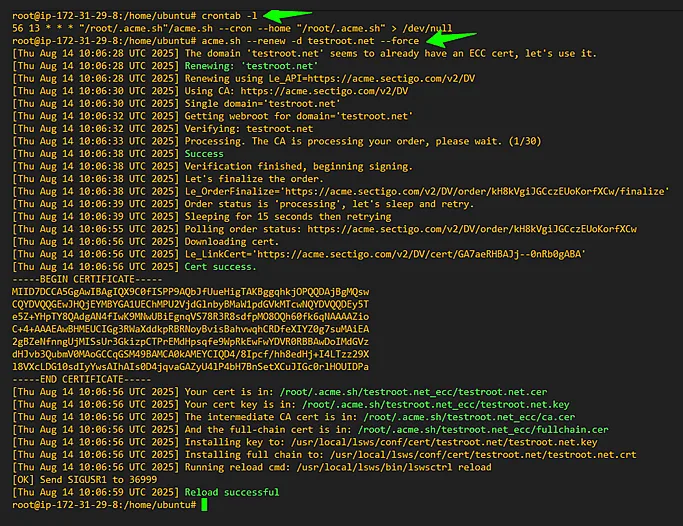
The cron entry handles renewals about 30 days before expiry. Note: A long “retry-after” message means the CA asked you to wait — try again later, and re-check the port 80 listener.
- 7
Step 7 of 7
Appendix: port 80 listener and challenge-path checks
Most installs don't need this, but it helps when validation fails.
Configure the HTTP listener. Sign in to WebAdmin at https://SERVER-IP:7080, open Listeners → Default, set Port 80 and IP ANY, then save and restart. Fresh installs already map the Example virtual host with a wildcard
*domain, which is enough for HTTP-01 validation.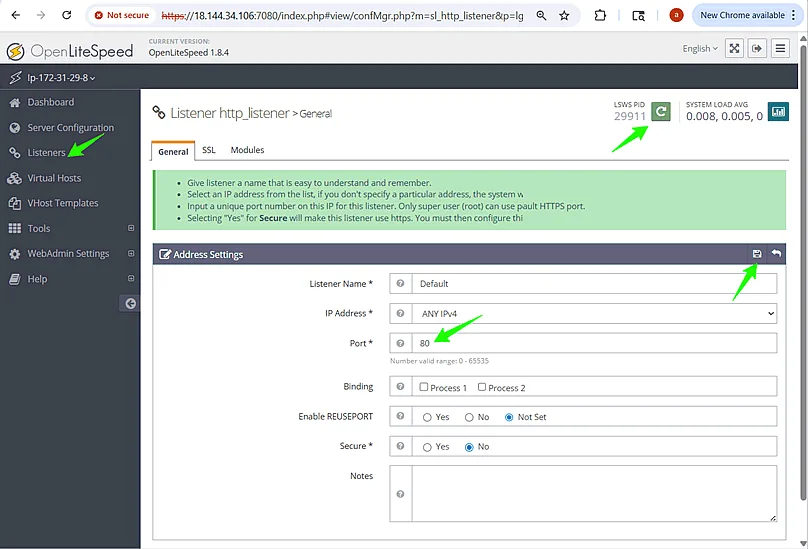
Default listener on port 80, ready for ACME validation. Test the challenge folder. Create a test file and fetch it over plain HTTP:
Terminal mkdir -p /usr/local/lsws/Example/html/.well-known/acme-challengeecho "Welcome test" > /usr/local/lsws/Example/html/.well-known/acme-challenge/testfilecurl http://yourdomain.com/.well-known/acme-challenge/testfile
The curl test should print “Welcome test”. If an .htaccess rule forces HTTPS, add an exception so the challenge path stays reachable over plain HTTP:
.htaccess RewriteEngine OnRewriteCond %{REQUEST_URI} !^/\.well-known/acme-challenge/RewriteCond %{HTTPS} !=onRewriteRule ^ https://%{HTTP_HOST}%{REQUEST_URI} [L,R=301]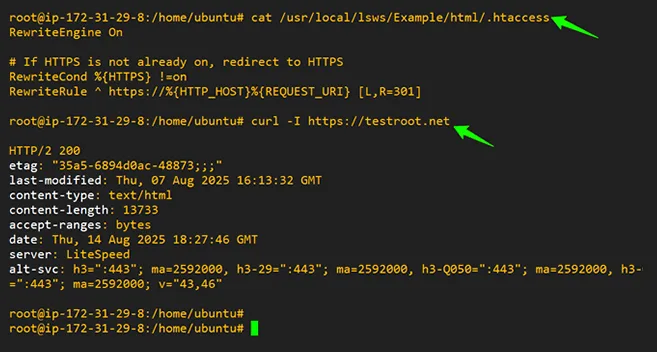
Review your redirect rules, then confirm the site answers over HTTPS. Tip: Port 80 blocked or busy? Run
sudo lsof -i :80to find the process, stop it, and restart LiteSpeed. Also open port 80 in the OS firewall and any cloud security group, WAF or CDN.
All set — your certificate now renews itself
Keep an eye on it anyway: scheduled jobs occasionally fail. Check your live certificate any time with our free SSL Checker.