
Install an SSL certificate in cPanel
Install a purchased certificate in cPanel, or check that free AutoSSL is protecting every domain.
Updated 18 October 20262 min read7 views0 found this helpful
Applies to

Enet cPanel hosting protects your domains with free AutoSSL. Install a paid certificate when you need organisation validation, a warranty or a trust seal.
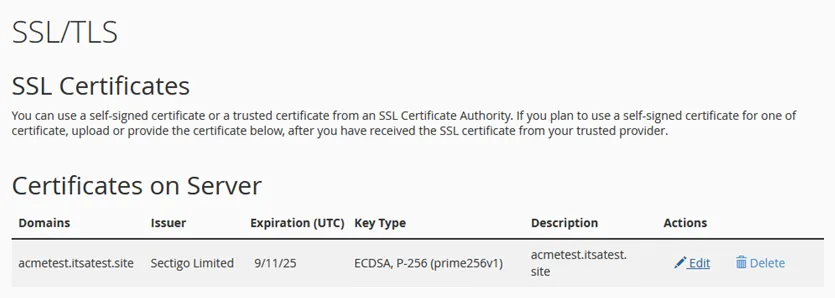
Check free AutoSSL
- Open Security → SSL/TLS Status.
- Each domain should show a green padlock. If one doesn't, tick it and click Run AutoSSL.
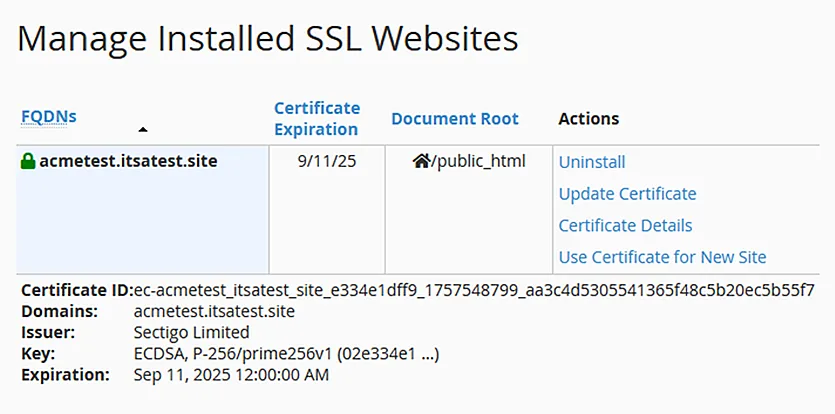
Install a purchased certificate
- Open Security → SSL/TLS → Manage SSL sites.
- Choose the domain.
- Paste the certificate (CRT) you received. cPanel usually fills in the private key automatically.
- Paste the CA bundle if it isn't filled in.
- Click Install Certificate.
Force HTTPS
Turn on Domains → Force HTTPS Redirect for each domain so visitors always use the secure address.
#SSL#cPanel#AutoSSL#install
Was this article helpful?
Your vote helps us write better guides.